
How to add a prayer times widget to your iPhone
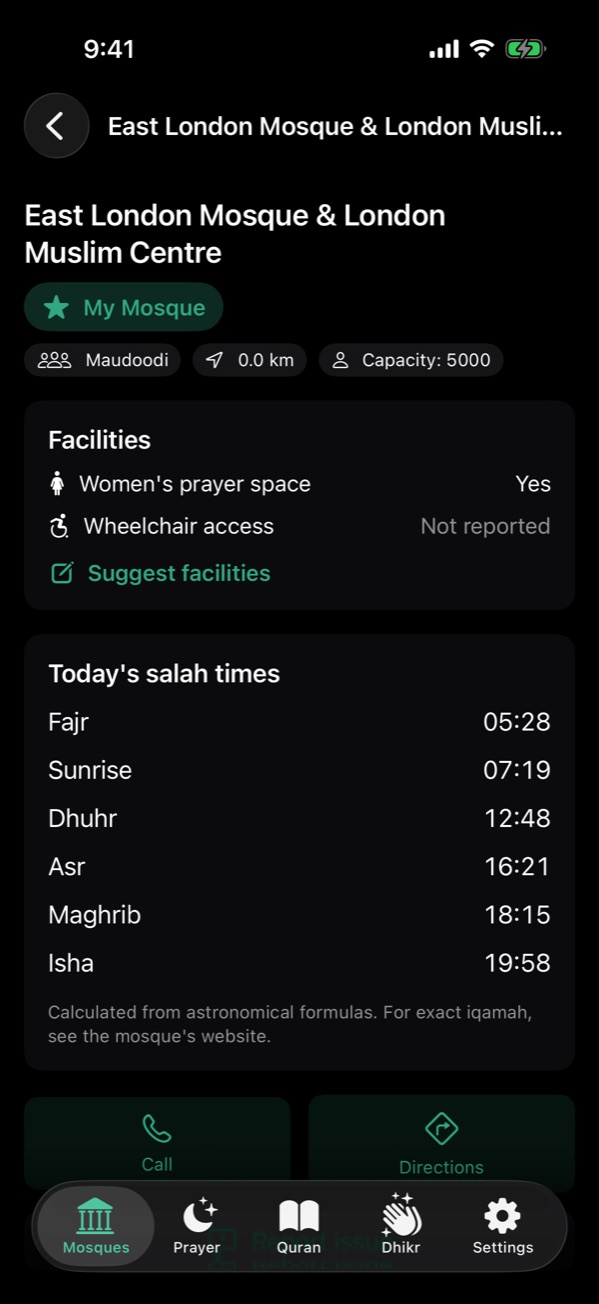
In NearMasjid, open your mosque and tap Set as My Mosque (the star). Then touch and hold your Home Screen, tap Edit → Add Widget, search for NearMasjid and add My Mosque. It shows the next prayer and a countdown, and opens the mosque when tapped.
1. Choose your mosque
Open NearMasjid, find your mosque on the map or list, open it and tap Set as My Mosque. A My Mosque badge appears on it.
2. Add the Home Screen widget
- Touch and hold an empty part of your Home Screen until the apps jiggle.
- Tap Edit, then Add Widget.
- Search for NearMasjid and choose My Mosque.
- Pick small or medium and tap Add Widget.
3. Add it to your Lock Screen
Touch and hold the Lock Screen, tap Customize, choose the Lock Screen, tap the widget area and add NearMasjid → My Mosque.
Change mosque
Open another mosque and tap the star; the widget follows. To remove it, tap Remove My Mosque.
Your mosque, one glance away
The My Mosque widget shows the next prayer at the mosque you chose, on your Home Screen or Lock Screen.
Download on the App StoreFree for iPhone and iPad. No ads, no account, no in-app purchases.
Frequently asked questions
What sizes are there?
Small and medium Home Screen widgets, and rectangular and inline Lock Screen widgets.
The widget says to open a mosque. Why?
You haven’t chosen a mosque yet. Open a mosque in NearMasjid and tap the star to set it as My Mosque.
Are there other widgets?
Yes, NearMasjid also has Daily Dhikr and Salawat Counter widgets.