
How to get adhan notifications on iPhone
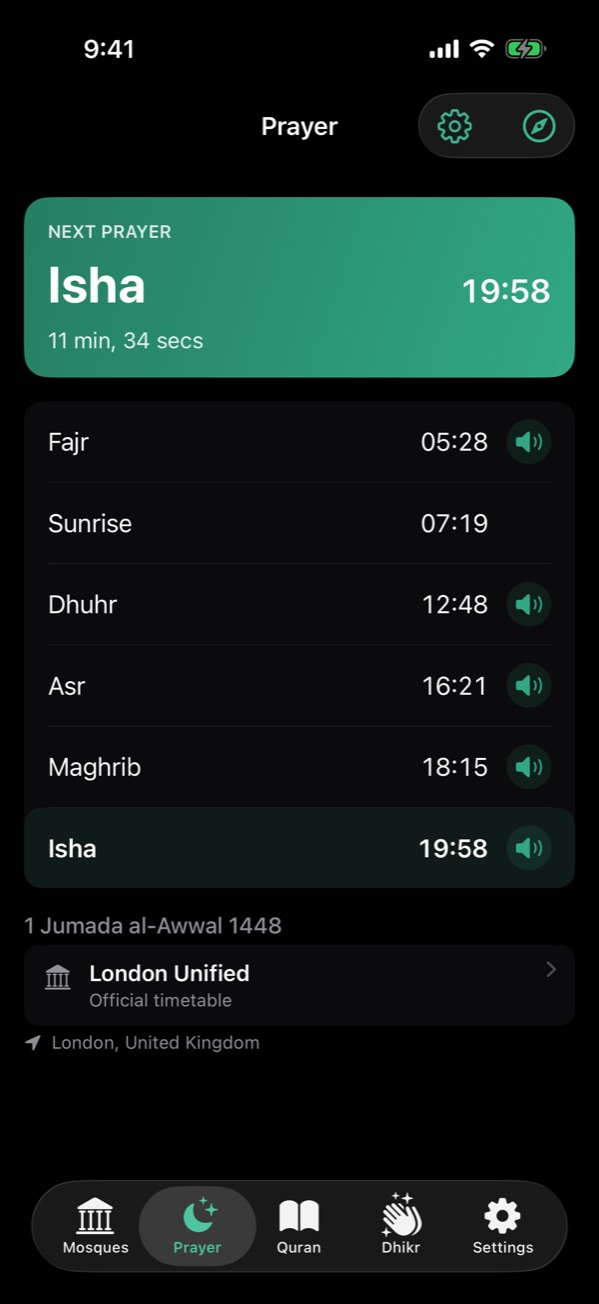
In NearMasjid, allow notifications when you set up prayer times (or turn them on in iOS Settings → Notifications → NearMasjid). You’ll get an alert at each prayer. Tap the speaker next to any prayer on the Prayer tab to switch its adhan to a silent alert, and use Manage adhan in Settings to download adhan sounds.
Turn notifications on
When you first open the Prayer tab, NearMasjid walks you through setup; tap Enable notifications on the last step. If you chose Maybe later, go to iOS Settings → Notifications → NearMasjid and allow notifications.
Mute the adhan for one prayer
On the Prayer tab, each prayer has a speaker button. Tap it to switch between Adhan voice on and Adhan voice off — silent alert.
Choose an adhan sound
Go to Settings → Prayer → Manage adhan to preview and download adhan sounds for offline use.
See the next prayer at a glance
NearMasjid shows the next prayer on the Lock Screen and in the Dynamic Island, and the My Mosque widget puts your mosque’s next prayer on your Home Screen.
Never miss a prayer
Adhan notifications are scheduled on your iPhone for every prayer, follow your method and offsets, and need no account.
Download on the App StoreFree for iPhone and iPad. No ads, no account, no in-app purchases.
Frequently asked questions
Do notifications need the internet?
No. They are scheduled on your iPhone by iOS, so they work offline.
Can I silence just one prayer?
Yes. Tap the speaker next to that prayer; it becomes a silent alert and you still get the notification.
Why didn’t I hear the adhan?
Check that notifications are allowed, your iPhone isn’t in a Focus that silences NearMasjid, and the prayer’s speaker isn’t muted.